Storyboard to Video AI
Drawstory takes your entire screenplay and builds a storyboard to video pipeline with consistent characters, sequenced shots, and production-ready panels.
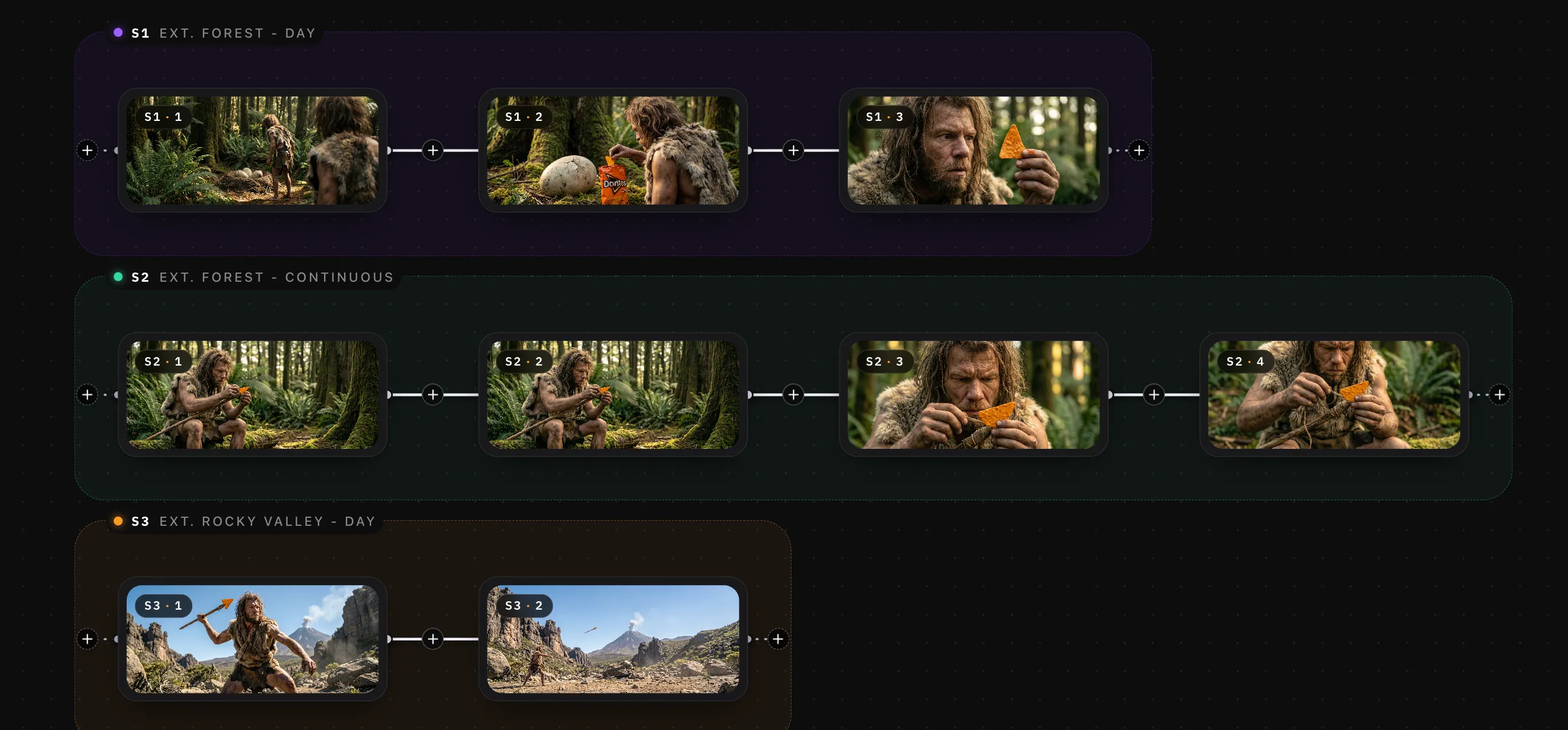
Drawstory takes your entire screenplay and builds a storyboard to video pipeline with consistent characters, sequenced shots, and production-ready panels.
The storyboard-to-video pipeline has a gap in the middle. On one side you have a screenplay. On the other you need moving footage. Most tools try to solve this by animating individual frames: upload a panel, describe a camera move, get a clip back. That works for a single shot. It falls apart for a full production.
Characters drift frame to frame
When each frame generates independently, the lead's face changes between the wide shot and the close-up. Wardrobe shifts between scenes. Proportions stretch and compress across the sequence. The output looks like it was made by five different artists who never talked to each other.
They start at the frame, not the script
These tools skip the script, the character lock, and the shot sequence. They animate panels without knowing what comes before or after. There is no pipeline — there are just disconnected clips.
Same character, four generations — face, wardrobe, and proportions drift between every shot.
One identity profile holds the character on-model from the first panel to the last.
DrawStory does not animate one panel at a time. It reads your full screenplay, identifies characters, assigns shots, and generates a complete storyboard with locked identities across every frame. The AI understands scene context, shot order, and which characters appear where — so every panel is built with awareness of the panels around it.
Structured for video from the start
The result is a storyboard sequence already structured for video. Shots flow in order. Characters stay on-model. Camera intent is built into every frame. When you take these panels into an animatic or hand them to a video generator, the foundation is clean.
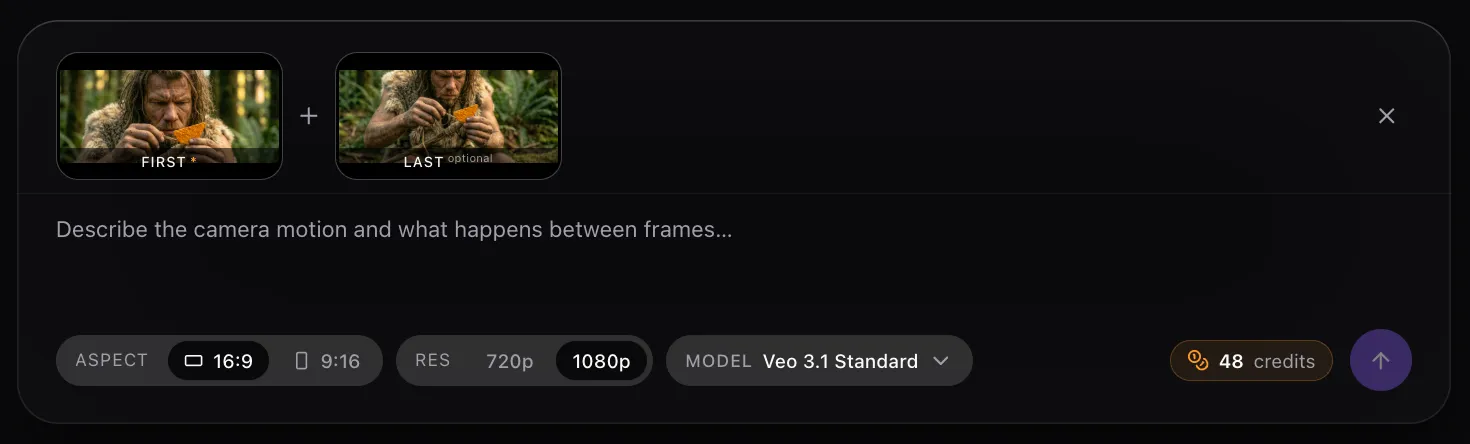
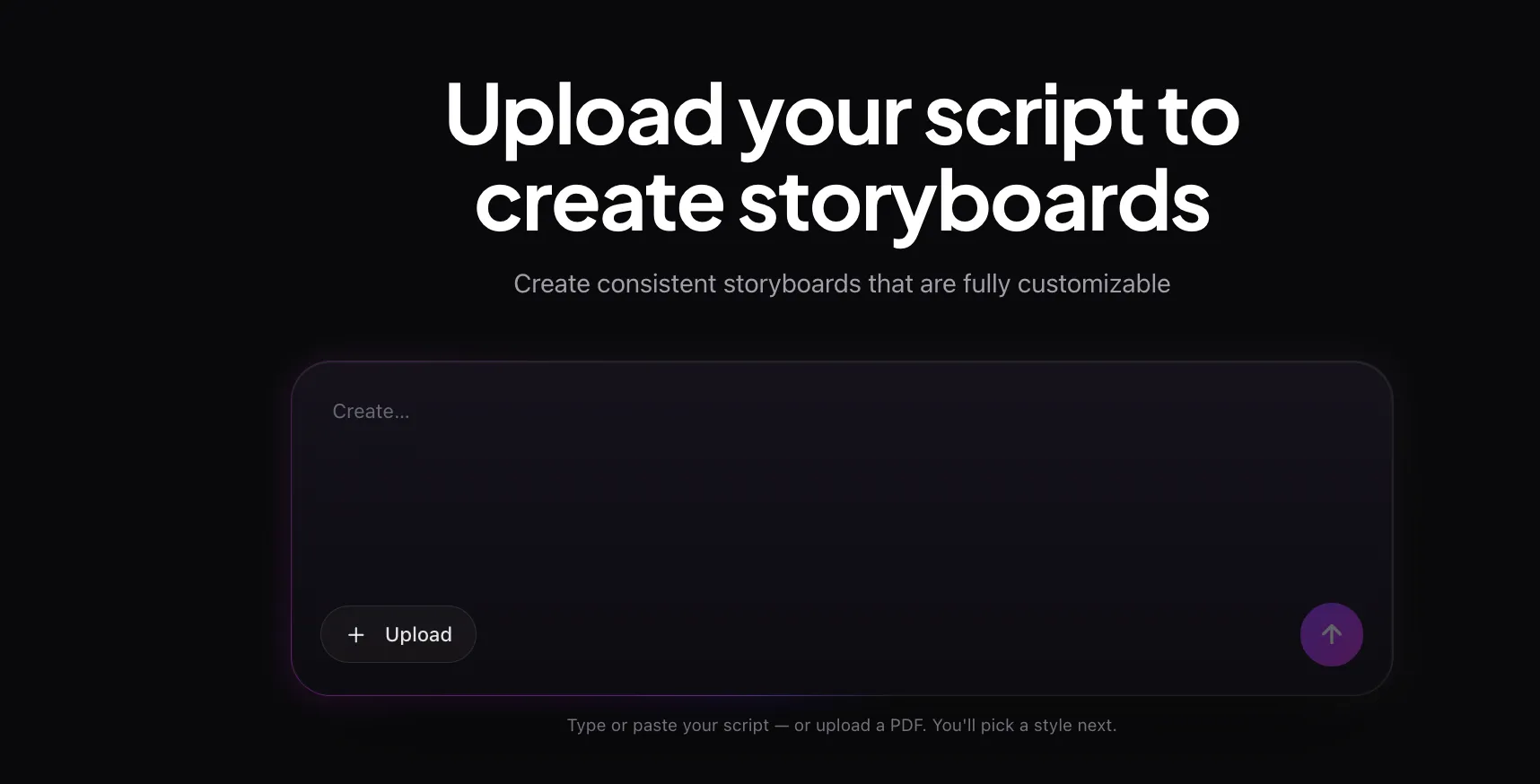
Five steps take you from a raw screenplay to production-ready panels and a timed animatic — no drawing, no drift, no disconnected clips.
Upload your screenplay
Paste or upload your script. DrawStory parses scene headings, action lines, dialogue, and character introductions, then builds a scene map that determines how many panels the project needs, where locations shift, and which characters appear in each shot.
Lock your characters
Describe each character or upload a reference image. DrawStory generates a visual identity and saves it as a locked profile — same face, same build, same wardrobe in every frame. Consistency is handled at the profile level, not the prompt level, so the identity holds from the first panel to the last.
Generate the full storyboard
DrawStory generates every panel in sequence — wide shots, mediums, close-ups, over-the-shoulder angles. Each frame is composed with the camera intent that production teams expect. The full board is ready to review, reorder, and refine.
Build the animatic
Set shot durations, add scratch audio, and play back the sequence as a timed video. This step reveals pacing issues static boards never show. Trim shots that drag, add beats where transitions feel abrupt, and lock the timing before production starts.
Export for video production
Download your panels as production-ready images and export the animatic as an MP4. Hand the frames to your video generator, your animation team, or your live-action crew. The handoff is clean because the panels were built for it from the start.
Most storyboard-to-video AI tools work at the frame level: upload one panel, get one clip. Drawstory works at the project level - upload a screenplay, get a full production-ready storyboard. Clip generators are a finishing step.
| Feature | Clip Generators | DrawStory |
|---|---|---|
| Input | Single storyboard frame | ✓ Full screenplay or scene descriptions |
| Output | 5–10 second motion clip | ✓ Complete storyboard + animatic |
| Character handling | ✕ Prompt-based, drifts between shots | ✓ Identity-locked profiles, holds across project |
| Scene awareness | ✕ None, each frame is isolated | ✓ Full script context, knows shot order |
| Shot sequencing | ✕ Manual assembly in NLE | ✓ Auto-sequenced from script |
| Pipeline position | End of pipeline — animate a finished board | ✓ Start of pipeline — build the board from script |
Sequenced panels, locked character profiles, a timed animatic, and shot-list-ready exports — all built to hand off cleanly to any downstream tool or team.
01
Sequenced storyboard panels
Every frame in script order with defined shot types, camera angles, and cinematic composition. Ready for review, client approval, or crew distribution.
02
Locked character profiles
Reusable identity files that keep faces, outfits, and proportions consistent across every panel, every scene, and every export.
03
Animatic video
A timed sequence with shot durations set to your pacing. Add scratch audio, test rhythm, and share with stakeholders before committing to production.
04
Shot list integration
Each panel maps to a defined shot in your shot list. Scene numbers, shot types, and camera notes carry through from script to board.
05
Production-ready exports
Download panels as high-resolution images and export the animatic as MP4. Feed frames into Runway, Kling, Pika, or any AI video generator with a clean, consistent visual base.
Built for teams that start from a script and need a consistent visual plan they can hand to every department, client, or downstream generator.
01
Film & TV production teams
Upload the screenplay and get a full storyboard with cinematic composition across every panel. Use the animatic to test pacing before the shoot, then hand the board to every department as the visual plan for production.
02
Agencies & brand teams
Storyboard commercials and branded content with consistent talent across every frame. Present the animatic to the client for approval, then produce the approved version with your preferred pipeline.
03
Animation studios
Generate the board from a script with locked character designs. Use the panels as layout references for keyframing and background composition — the workflow starts cleaner when the board was built for animation from the beginning.
04
Independent filmmakers
Pre-visualize your entire project before raising a budget or booking a crew. Show investors a moving animatic instead of a static pitch deck, and build proof-of-concept reels from a script alone.
05
Content creators
Plan episodic content, YouTube series, and short-form video with a storyboard sequence that keeps recurring characters looking the same across every episode.
Everything you need to know about the storyboard-to-video pipeline.
What is a storyboard to video pipeline?
It's the workflow that takes static storyboard panels and turns them into moving footage. It typically includes creating an animatic (a timed panel sequence), producing the footage through live-action, animation, or AI generation, and completing post-production with editing, sound, and color.
How is DrawStory different from tools like Pixazo or ZSky?
Clip generators like Pixazo and ZSky animate individual frames — you upload one panel and get one motion clip back. DrawStory works upstream: it reads your full screenplay, generates the entire storyboard with locked characters and sequenced shots, and outputs panels structured for video from the start. The handoff is cleaner because every frame was built with scene context.
Can I use DrawStory panels with AI video generators?
Yes. Export your panels as high-resolution images and feed them into any image-to-video tool. Because DrawStory locks character identity at the profile level, the visual base stays consistent across frames — giving downstream generators a stronger reference and reducing drift between clips.
Do I need a finished screenplay to start?
No. You can paste scene descriptions, rough outlines, or partial scripts. DrawStory parses whatever text you provide and generates panels from it. A full screenplay gives the AI more context for shot selection and character placement, but shorter inputs work for individual scenes or concept tests.
What does the animatic include?
The animatic plays your storyboard panels in sequence with set durations per shot. You can add scratch voiceover and temp music to test timing and emotional pacing, then export it as an MP4 for stakeholder review, client presentations, or crew alignment before production begins.
DrawStory builds the storyboard-to-video bridge that starts at your screenplay and ends with production-ready panels. Locked characters. Sequenced shots. Animatic-ready frames. No drawing. No drift. No disconnected clips.
Start FreeGo from script to storyboard to video in minutes — no credit card required



